Quick Start Guide
Isograd
Import Learners
Using the Instructor role, the Import Users option is available from the main Isograd Learning menu located at the top of the page. Import Users is the best way to import a list of students in bulk. This article will document the procedural steps.
Step 1:
On the navigation menu, click Import Users.

Step 2:
To access the import template spreadsheet, on the IMPORT tab, click on the blue hyperlink labeled CLICK HERE to download the Import template spreadsheet.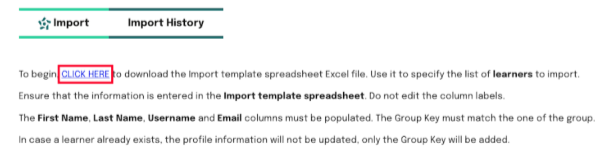
Note: This document will need to be downloaded and the Enable Editing option clicked to begin entering data.
The template spreadsheet worksheet is named Import Template, and has the following columns:
- First Name – your learner's first name
- Last Name – your learner's last name
- Username – your learner's email address
- Email – your learner's email address
- Password – 7 characters minimum
- Group Code – The group code copy/pasted from the Dashboard menu
Note: All fields are required.
Step 3:
Using applicable data, populate each column accordingly.
Note: Be careful using the Excel Auto-fill feature, especially in the Activation Code column, ensuring that the original value is not incremented or altered erroneously.”

Step 4:
Save the spreadsheet - rename it if you need to.
Step 5:
Click in the grey zone to browse and upload your Excel saved file or Drag and drop it onto the grey zone.

Step 6:
The pre-upload will start automatically, displaying a preview of the names and information. At this stage, you can initiate the import process by clicking the IMPORT LEARNERS button to complete the import. 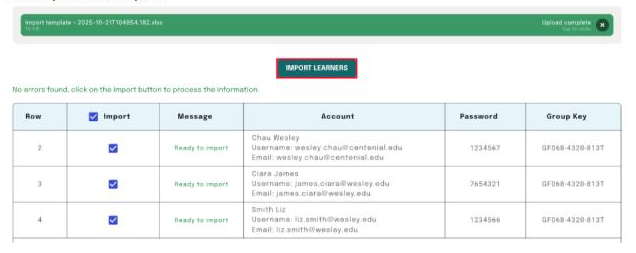
Alternatively, you can navigate back to the spreadsheet to correct any issues or errors. After addressing these concerns, repeat Step 6.
Step 7:
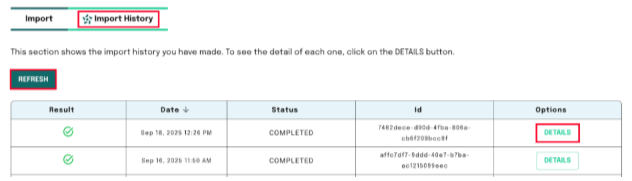
Success! Learners will be added to their group in a few seconds. Click the IMPORT HISTORY tab near the top left of the page to view details and possibly previous imports. Use the REFRESH button as needed.
Click on Details if you want to see the content of your imported file.
Great job! Learners are now ready to begin using Isograd Learning.
If you need additional assistance, encounter an error, or have an issue during this process, submit a support ticket to support@isograd.com If possible or applicable, attach a screen capture depicting the error or issue you’re experiencing.
Updated October 23, 2025
Was this article helpful?
That’s Great!
Thank you for your feedback
Sorry! We couldn't be helpful
Thank you for your feedback
Feedback sent
We appreciate your effort and will try to fix the article