Quick Start Guide
Isograd Learning Lab
Defining & Adjusting Grade Weights in Parameters
As an Instructor, you do have the ability to adjust the preset category weights by group.
Step 1:
At the top navigation menu bar, click Dashboard.

Step 2:
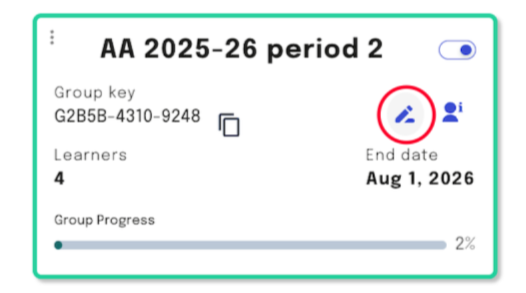
Locate the group you intend to adjust the weights for and click EDIT icon.
Step 3:
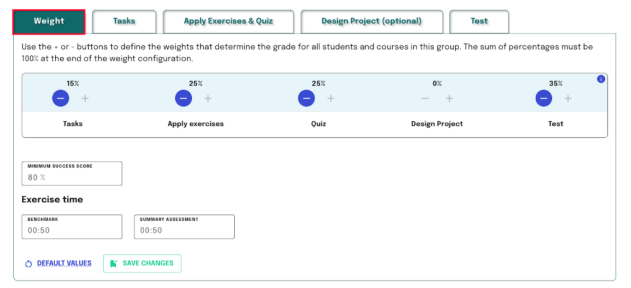
Ensure the Weight tab is selected.
Step 4:
Review the default settings. They are configured to add up to 100%. Use the + and – signs to adjust the weights for each category. You cannot use the + sign initially because
You may use the – sign to lower the weight of one category, then use the + sign to increase the weight of another category. Adjust the percentages to meet the unique needs of your course.
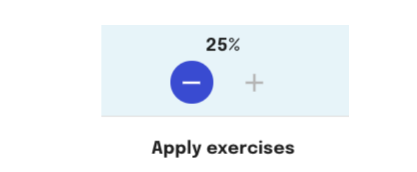
Note: You will be notified if your percentages do not add up to 100%. You may not save your changes unless the sum of percentages is equal to 100%.

Step 5:
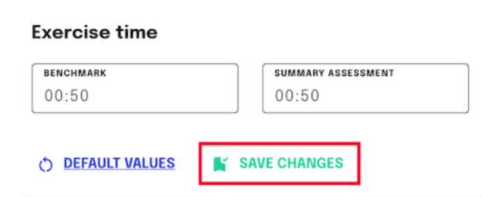
Click Save Changes. Learners will be able to see the category weights in the score reports.

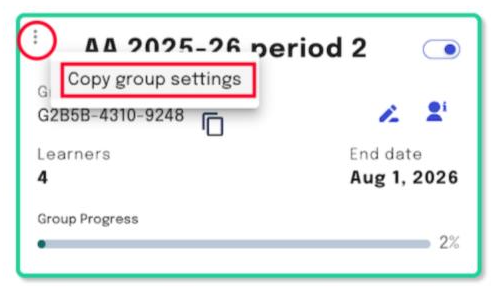
Copy these settings onto other groups by clicking on the three dots on the group's top left corner. Click on Copy group settings.
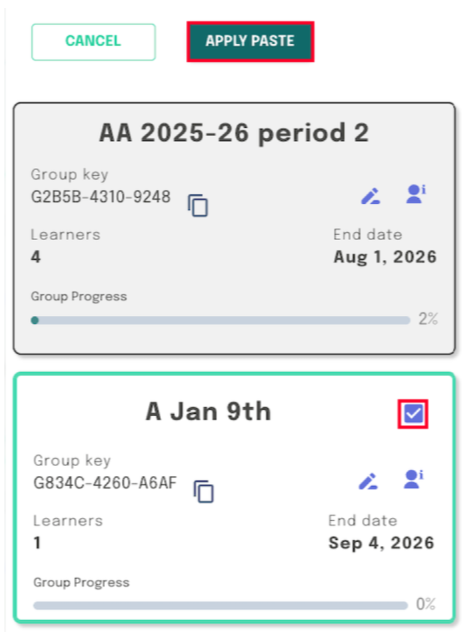
Select the group (s) where you want to apply these same settings, then click Apply Paste.
The following configuration parameters will be applied:
· Weight
· Tasks
· Apply Exercises & Quiz
· Test
· Design Project (optional)
Great job! Learning product users are now ready to begin using Isograd Learning Lab.
If you need additional assistance, encounter an error, or have an issue during this process, submit a support ticket to support@isograd.com If possible or applicable, attach a full-page screen image depicting the error or issue you’re experiencing.
Updated October 23, 2025
Was this article helpful?
That’s Great!
Thank you for your feedback
Sorry! We couldn't be helpful
Thank you for your feedback
Feedback sent
We appreciate your effort and will try to fix the article