This support article explains the process to obtain the Isograd Adobe plugin directly from the Adobe Marketplace.
1. Open Adobe Creative Cloud on your desktop.
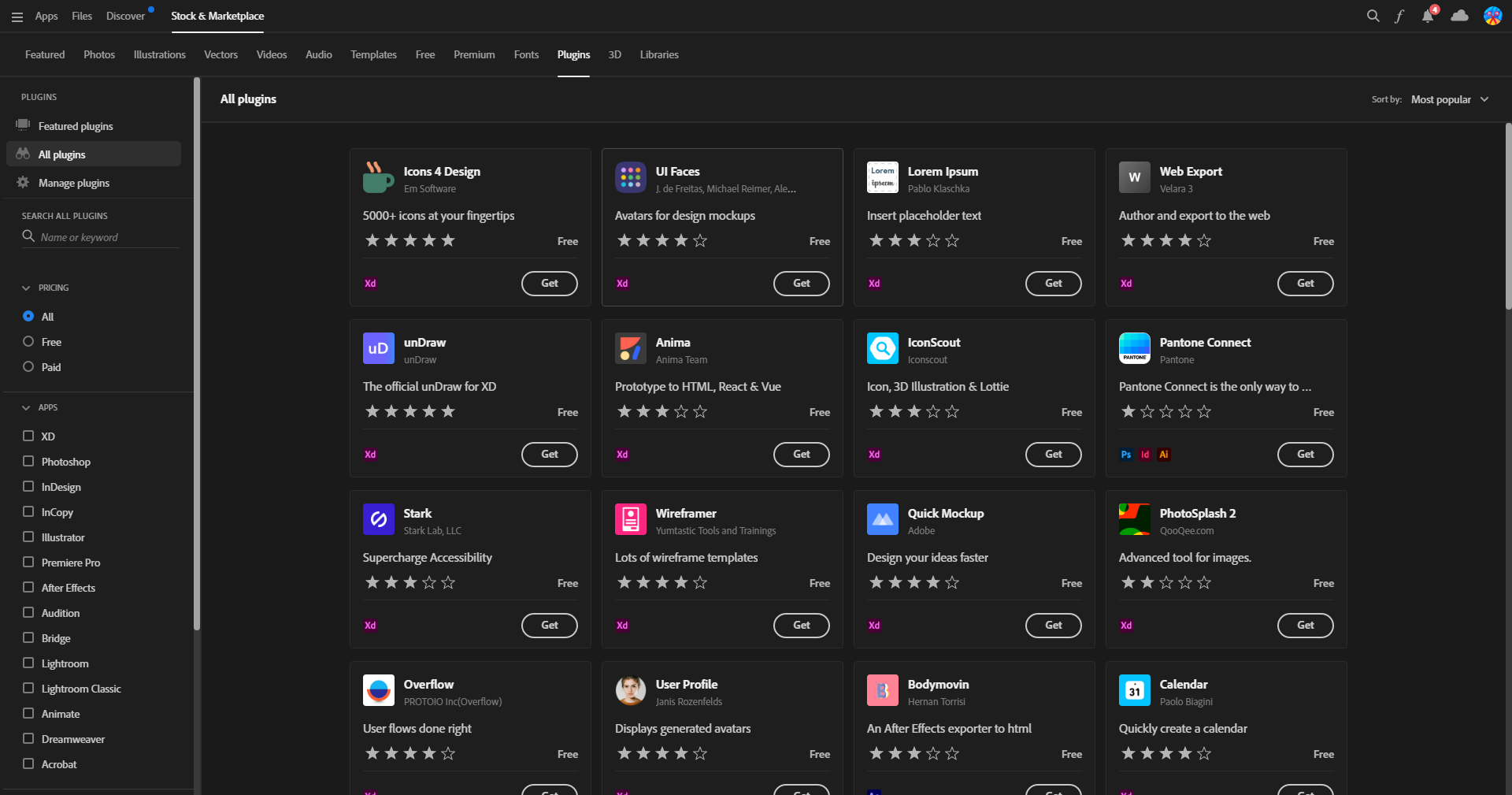
2. In the top right hand corner click on the Search Icon.
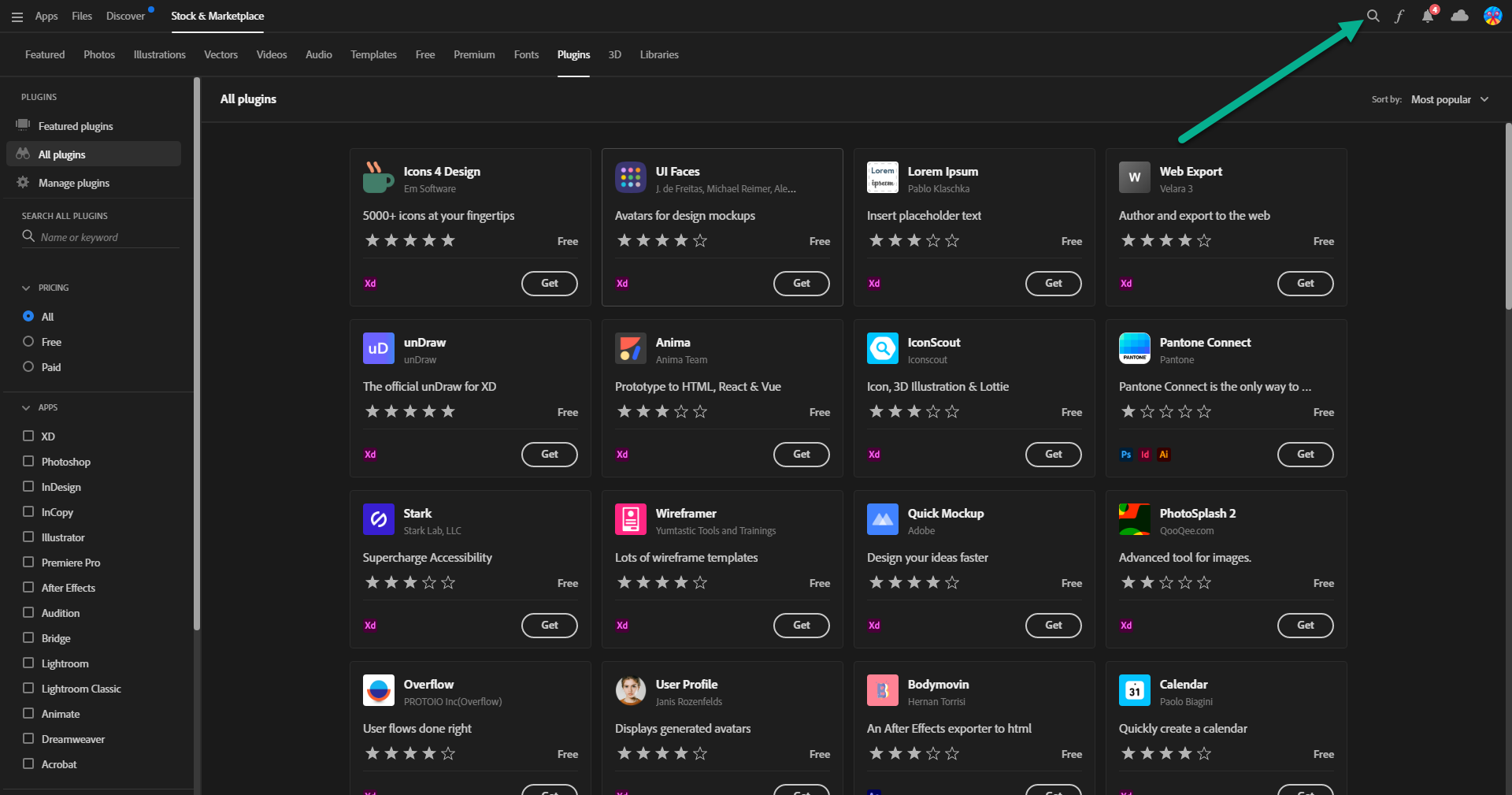
3. In the search dialog box type in "ISOGRAD"
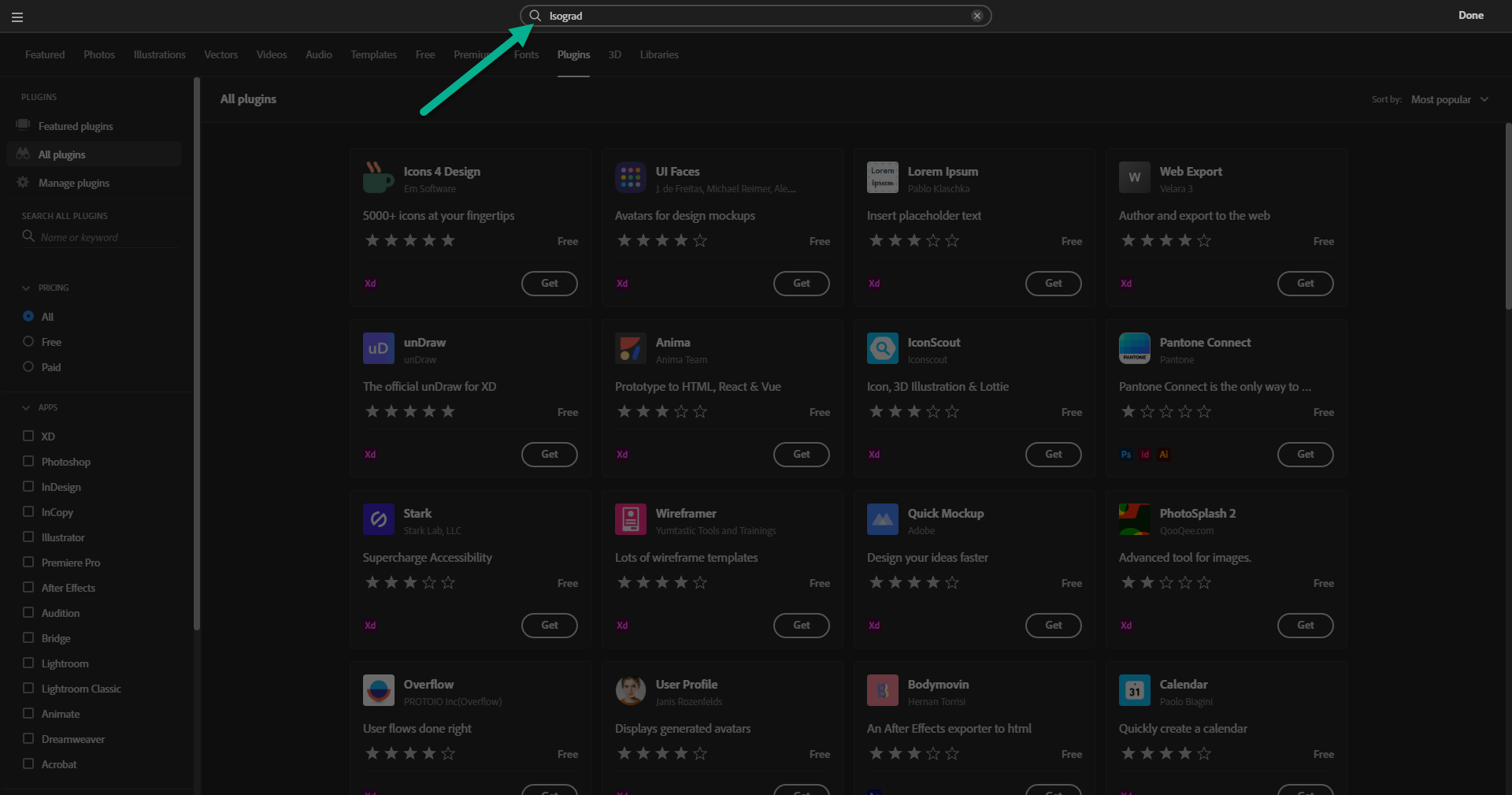
4. Select the ISOGRAD plugin from the search results.
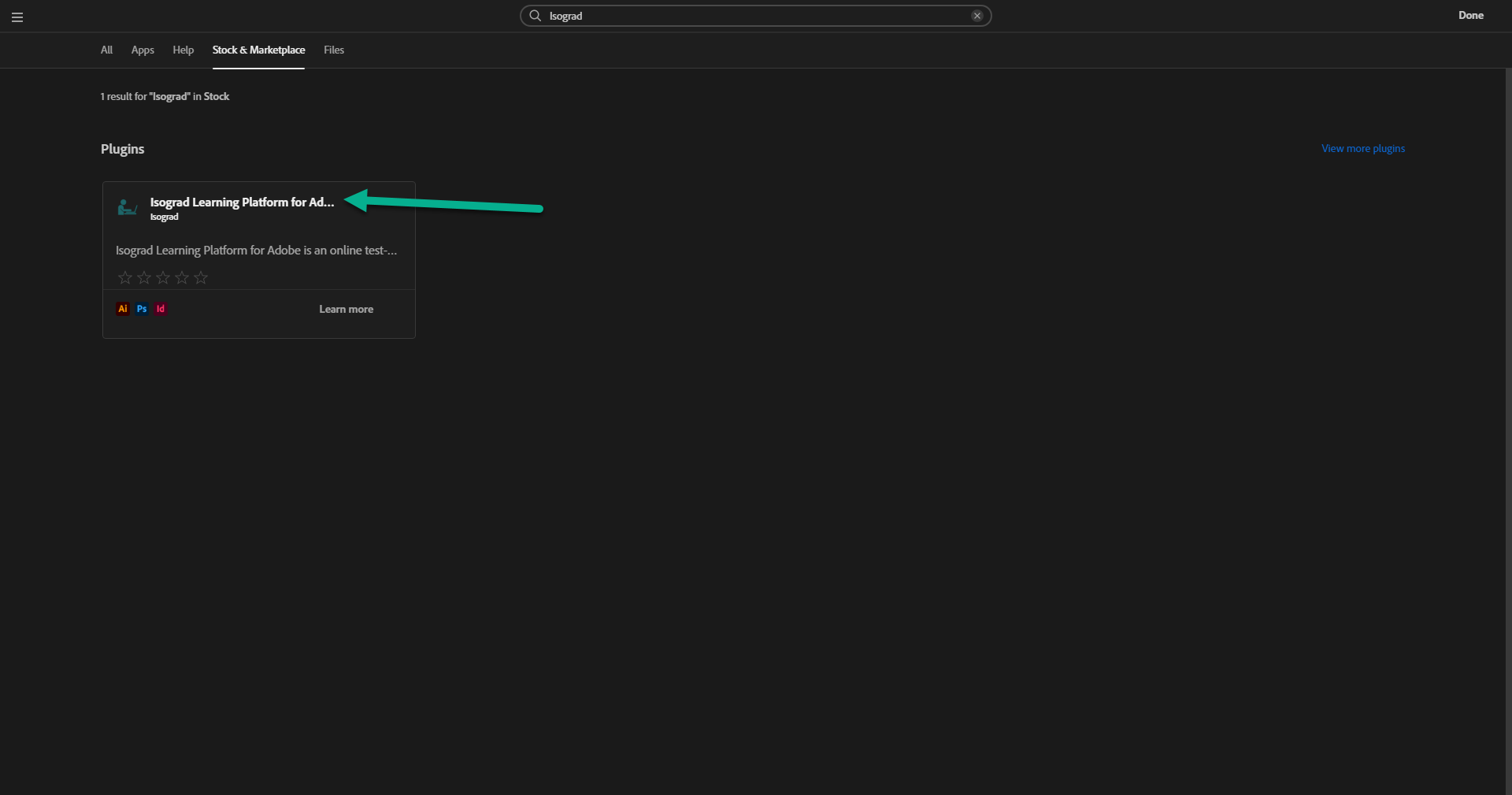
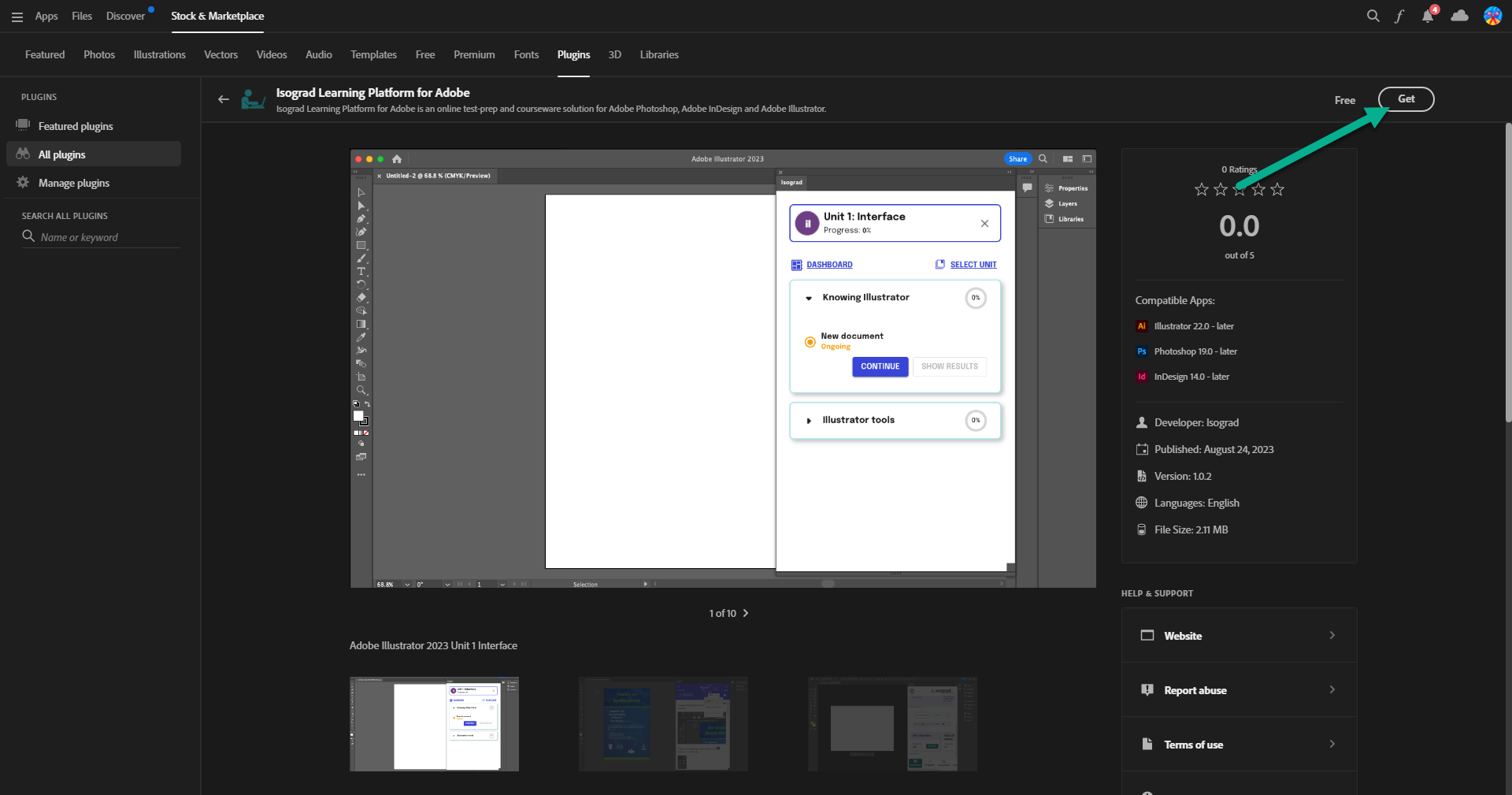
5. On the main plugin screen on the right hand side click on GET
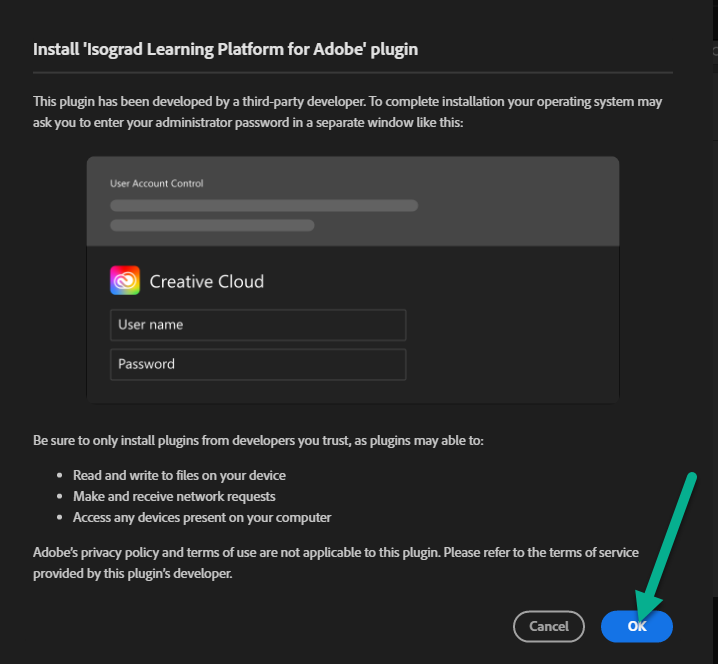
6. Read the Terms of Service and Policies screen and then click OK
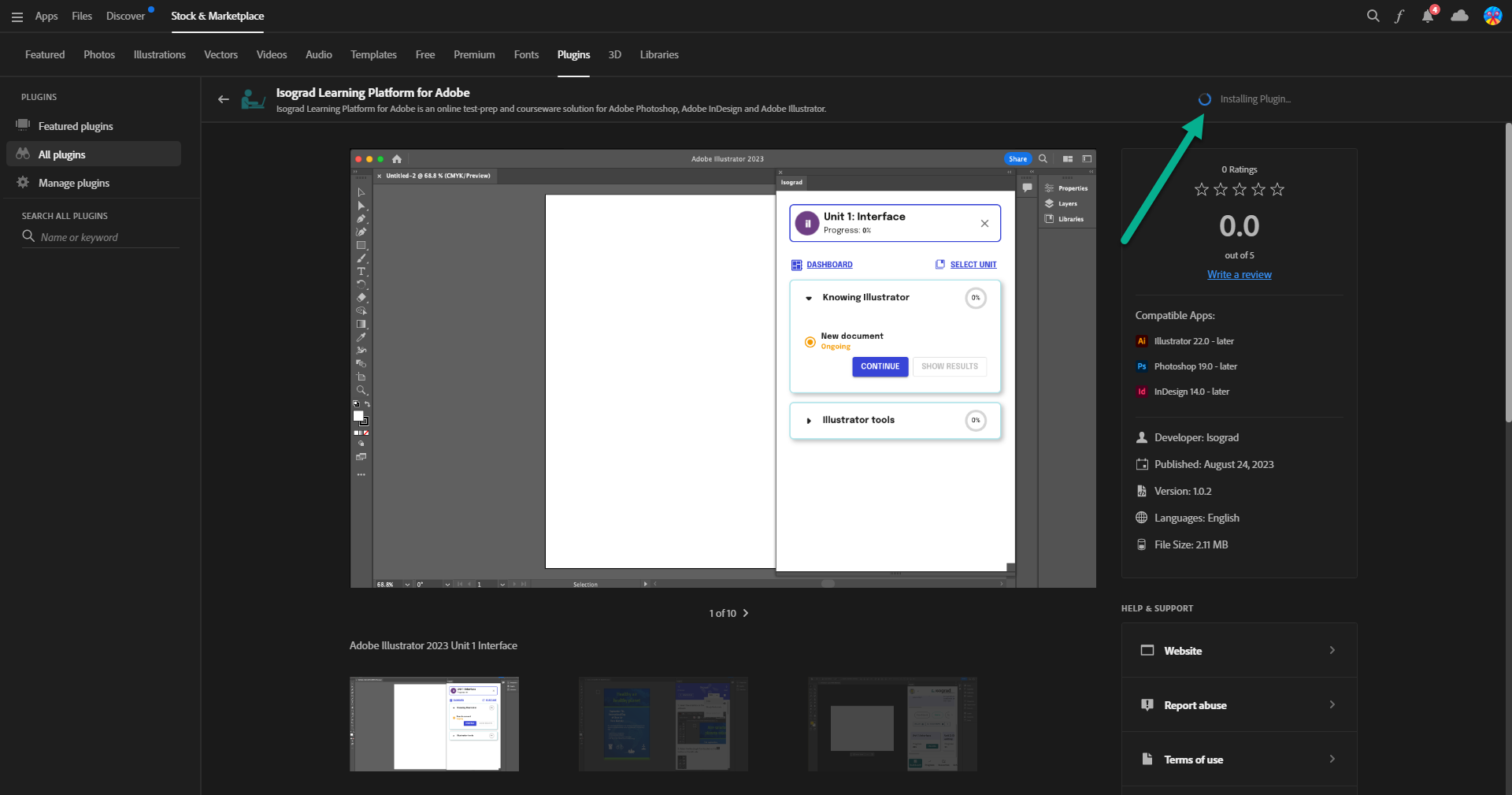
7. The plugin will begin the installation process.
8. Once completed the plugin will be Installed for all Adobe applications, to locate the plugin please refer to the location images below.
Photoshop: Open Photoshop - Click Window > Extensions (Legacy) > Click Isograd

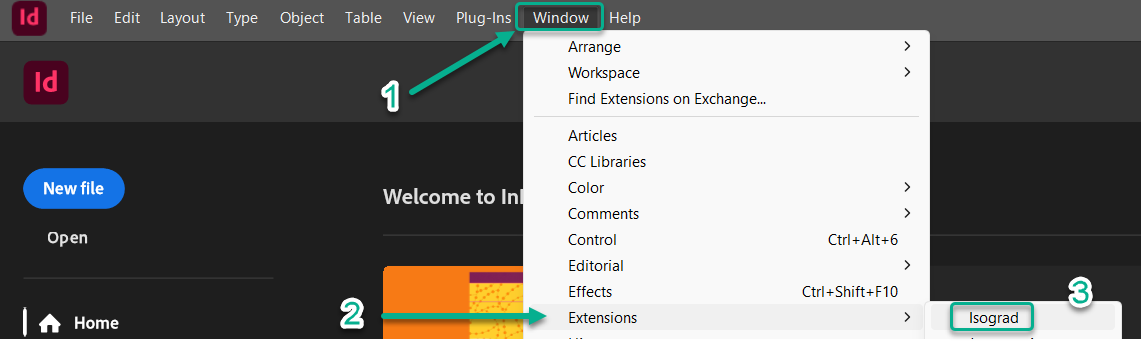
InDesign: Open InDesign > Click Window > Extensions > Click Isograd
Illustrator: Open Illustrator > Click Window > Extensions > Click Isograd

Premiere: Open Premiere > Click Window > Extensions > Click Isograd

Adobe Mac Users:
There are two extra steps required to make the Adobe plugin compatible with Apple Silicon (M1 chip and up - https://support.apple.com/en-ca/116943). Please see the instructions below:
Step 1 – Install or Update Rosetta
1. Open Terminal
2. Run the following command: software update - install Rosetta
3. When prompted, type a and press Enter to confirm
4. Once the installation is complete, close Terminal
Step 2 – Enable Rosetta in Adobe Applications
1. Open Finder, go to Applications, and locate the desired Adobe app
(Photoshop, Illustrator, InDesign or/and Premiere Pro)
2. Right-click on the desired Adobe app and select Get Info
3. In the info window, check the box labeled Open using Rosetta
4. Close the Info window