Quick Start Guide
Isograd Learning Lab
Resetting Learners Passwords
Throughout the school year, learners may forget their password. While you cannot see their current password, you do have the option to reset it.
Step 1: From the landing page, select Dashboard.

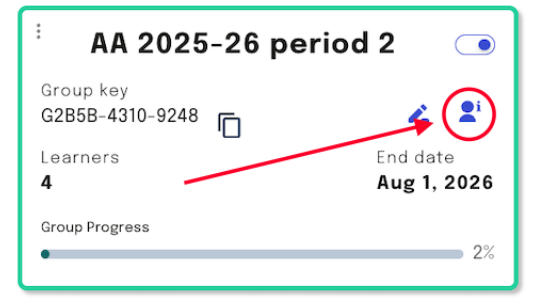
Step 2: Once you've located the learner's group, select the Users icon, represented by a small person symbol.
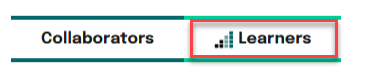
Step 3: Beneath the group General Information, select Learners.
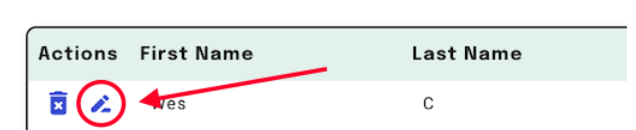
Step 4: Next to each learner, you will see an Edit Learner pencil icon. Click it for the learner who needs a password reset.
Step 5: In the Edit user window, the password field will be blank. Simply type a new password for the learner and click Save. Note that passwords must be at least 7 characters long.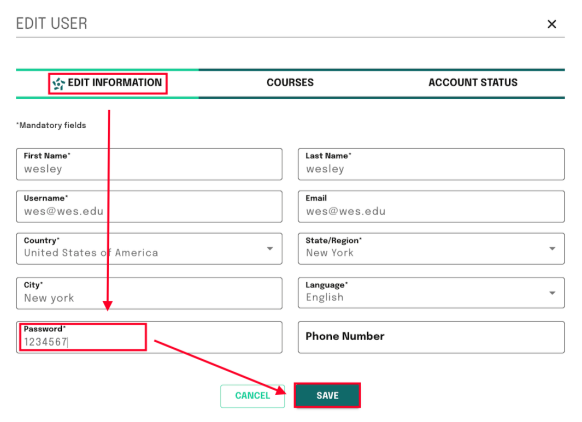
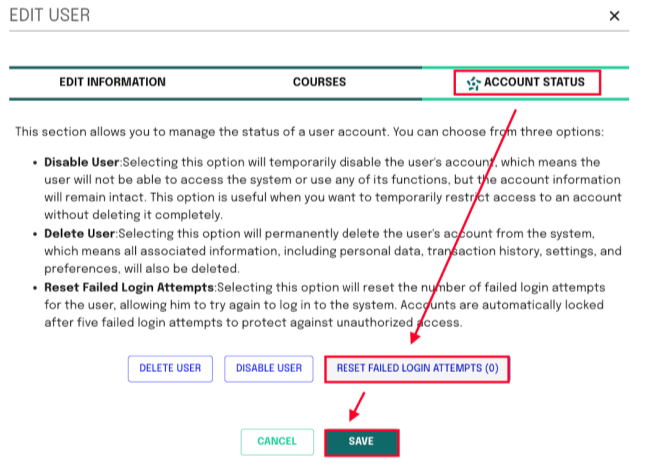
Step 6: Click Account Status to unlock your learner's account, then Reset Failed login Attempts and click Save again.
If you need additional assistance, please submit a support ticket to support@isograd.com.
Was this article helpful?
That’s Great!
Thank you for your feedback
Sorry! We couldn't be helpful
Thank you for your feedback
Feedback sent
We appreciate your effort and will try to fix the article